

- Collaborate lets you invite people and share preview or editor links.
- Publish makes a version of your design available as a public website.
Collaborate
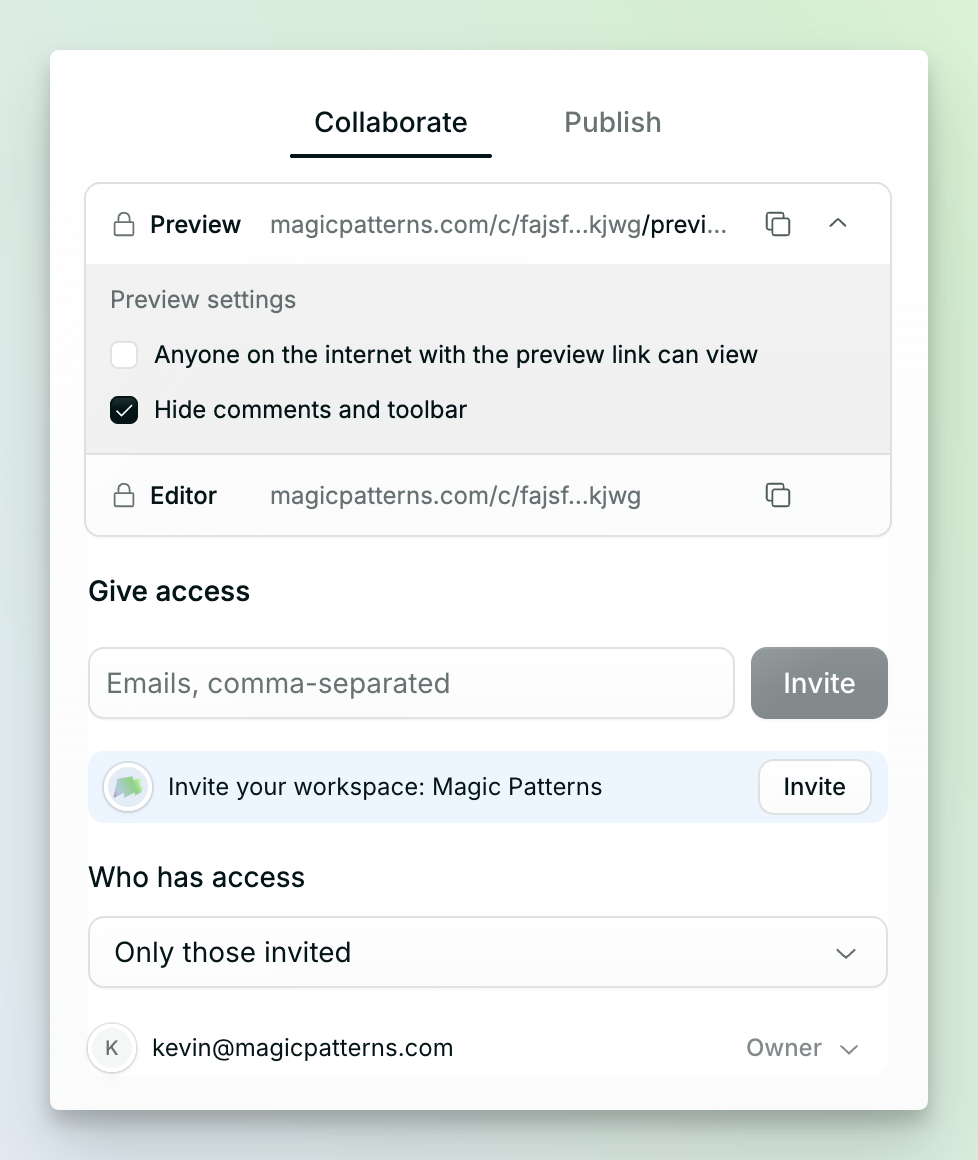
- Preview link — Opens a rendered, interactive version of your design instead of the Magic Patterns editor. Use this when you only want someone to view and interact with the finished design.
- Editor link — Opens the design in the Magic Patterns editor. Use this when you want someone to collaborate by editing the design, viewing the prompt history, leaving comments, or creating a fork.
To make a design viewable by people who were not invited by email, publish it and
use the public URL; new designs are private by default as of August 4, 2026.
Invite people
Enter one or more email addresses under Give access, then click Invite. You can also invite your workspace at once. Use Who has access to change the general access setting and manage each person’s access (read, write, or transfer design ownership).Publish
Use the Publish tab when you want to make a design available at a public URL.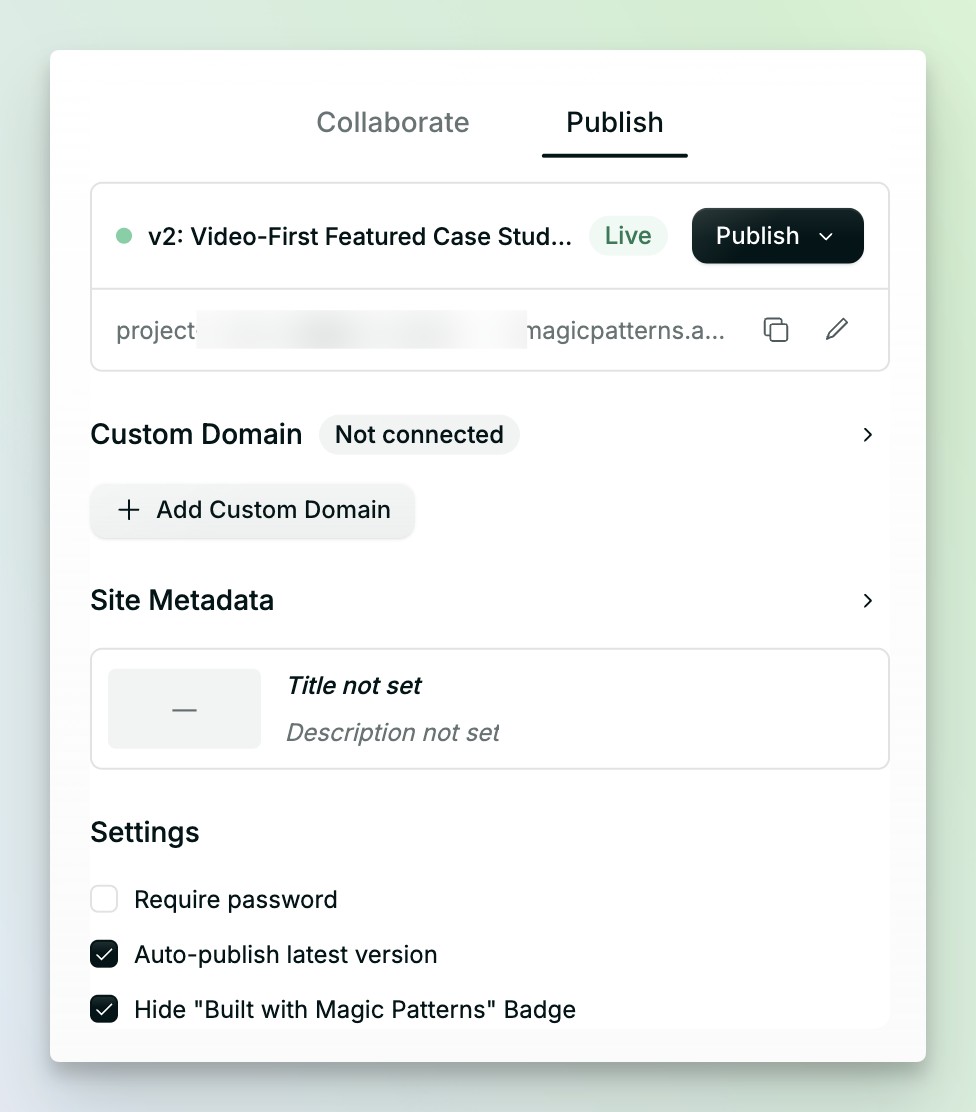
1
Publish the design
Click Publish. The panel marks the selected version as Live and
shows its published URL.
2
Copy the published URL
Click the copy button beside the URL and send the link to anyone who should
see the site.
Unpublish a site
Select Unpublish from the live version card. If you unpublish the design, it is no longer available at that public URL; you can still share it with the access controls in the Collaborate panel.Configure the published site
From the Publish tab, you can:- Change the publish URL or connect a custom domain
- Set the site title, description, favicon, and social preview image
- Require a password
- Show or hide the “Built with Magic Patterns” badge