> ## Documentation Index
> Fetch the complete documentation index at: https://magicpatterns.mintlify.site/docs/llms.txt
> Use this file to discover all available pages before exploring further.
# Sharing Designs
> How to share Magic Patterns designs
Click **Share** in the editor navbar to open the sharing panel. The panel has two tabs:
* **[Collaborate](#collaborate)** lets you invite people and share preview or editor links.
* **[Publish](#publish)** makes a version of your design available as a public website.
## Collaborate
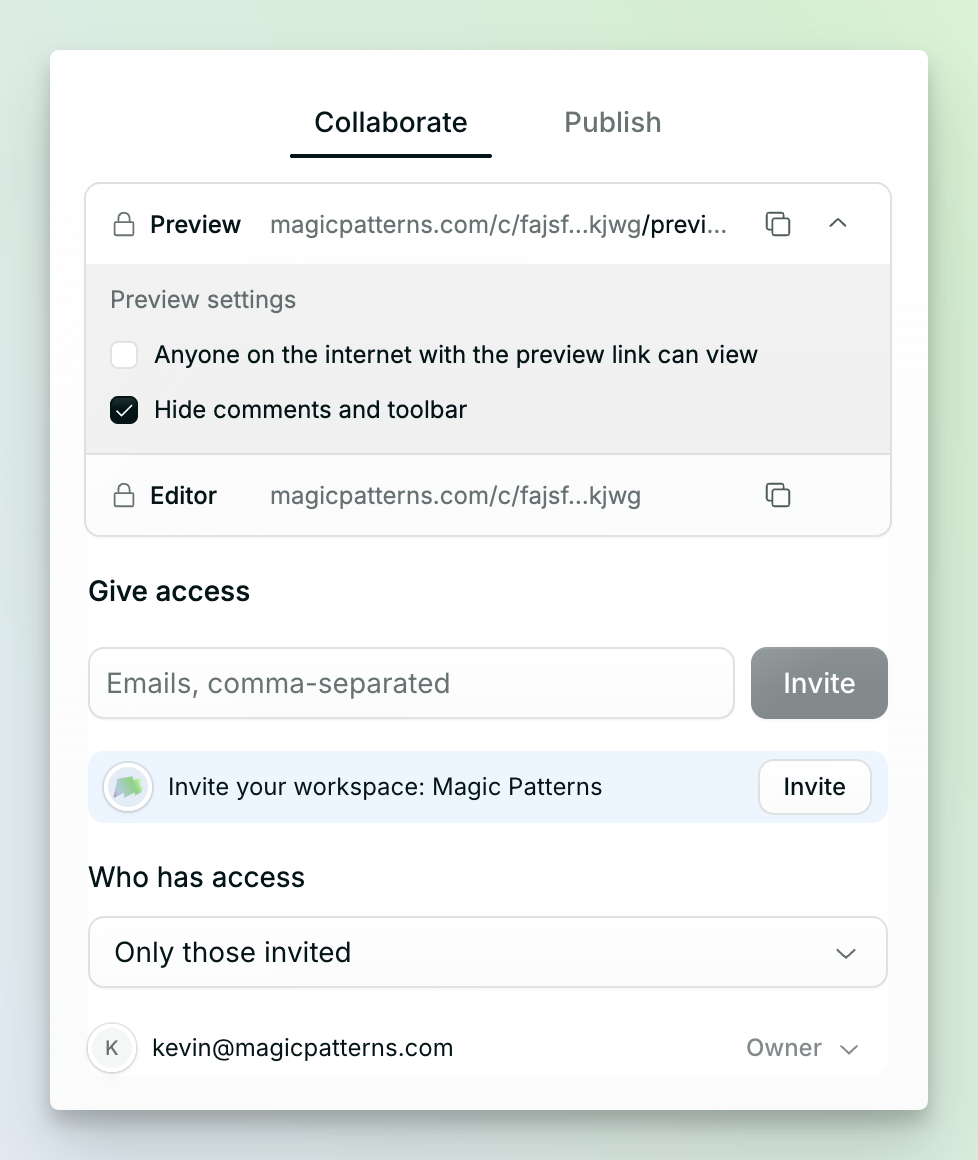 The Collaborate panel lets you manage access to your design and share it with others.
Which link should I use?
* **Preview link** — Opens a rendered, interactive version of your design instead of the Magic Patterns editor. Use this when you only want someone to view and interact with the finished design.
* **Editor link** — Opens the design in the Magic Patterns editor. Use this when you want someone to collaborate by editing the design, viewing the prompt history, leaving comments, or creating a fork.
To make a design viewable by people who were not invited by email, publish it and
use the public URL; new designs are private by default as of August 4, 2026.
### Invite people
Enter one or more email addresses under **Give access**, then click **Invite**. You can also invite your workspace at once.
Use **Who has access** to change the general access setting and manage each person's access (read, write, or transfer design ownership).
## Publish
Use the **Publish** tab when you want to make a design available at a public URL.
The Collaborate panel lets you manage access to your design and share it with others.
Which link should I use?
* **Preview link** — Opens a rendered, interactive version of your design instead of the Magic Patterns editor. Use this when you only want someone to view and interact with the finished design.
* **Editor link** — Opens the design in the Magic Patterns editor. Use this when you want someone to collaborate by editing the design, viewing the prompt history, leaving comments, or creating a fork.
To make a design viewable by people who were not invited by email, publish it and
use the public URL; new designs are private by default as of August 4, 2026.
### Invite people
Enter one or more email addresses under **Give access**, then click **Invite**. You can also invite your workspace at once.
Use **Who has access** to change the general access setting and manage each person's access (read, write, or transfer design ownership).
## Publish
Use the **Publish** tab when you want to make a design available at a public URL.
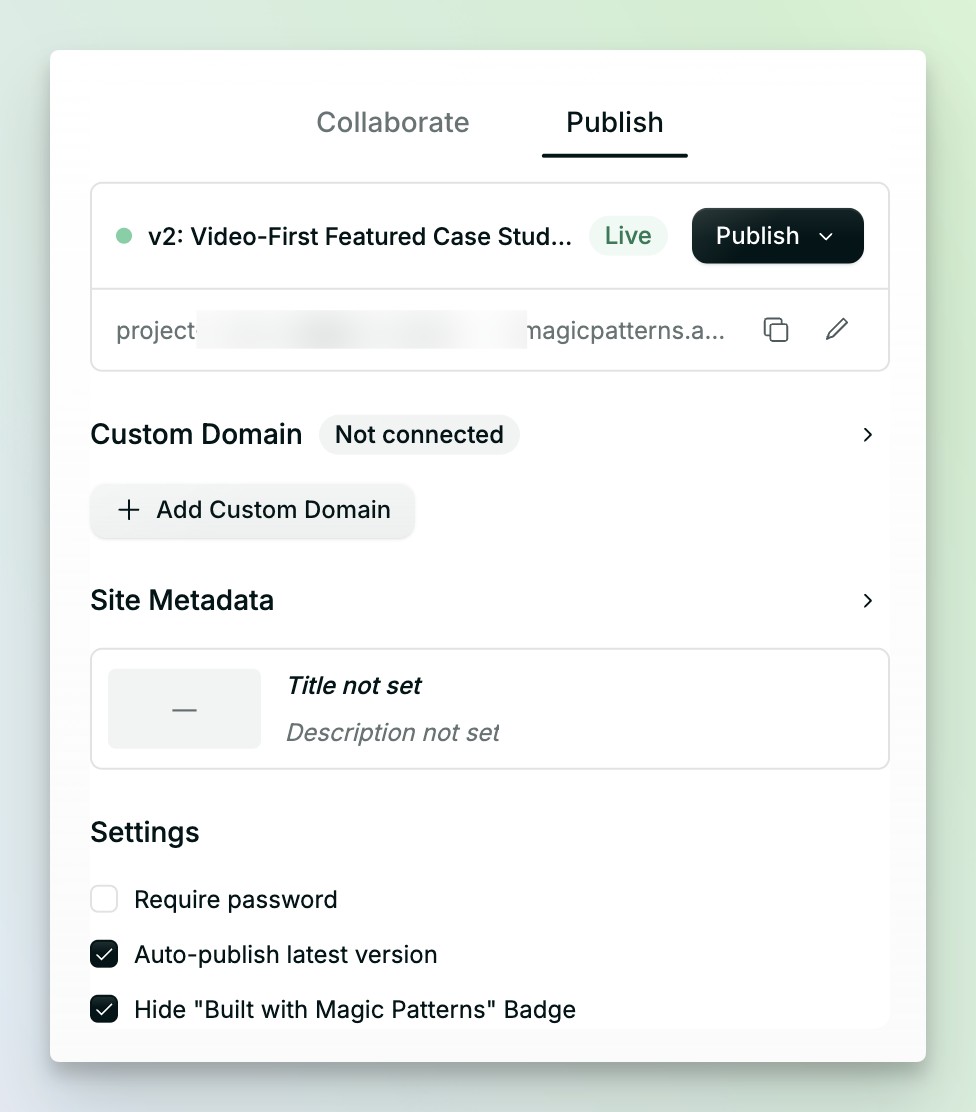 Click **Publish**. The panel marks the selected version as **Live** and
shows its published URL.
Click the copy button beside the URL and send the link to anyone who should
see the site.
### Unpublish a site
Select **Unpublish** from the live version card. If you unpublish the design, it is no longer available at that public URL; you can still share it with the access controls in the [Collaborate](#collaborate) panel.
### Configure the published site
From the **Publish** tab, you can:
* Change the [publish URL](/docs/documentation/publishing/publish-url) or connect a [custom domain](/docs/documentation/get-started/custom-domain)
* Set the site title, description, favicon, and social preview image
* Require a password
* Show or hide the "Built with Magic Patterns" badge
## Live multiplayer
When teammates open the editor link, their avatars appear in the editor toolbar. The chat thread, generations, and preview update for everyone in real time. On the [Canvas](/docs/documentation/projects/getting-started), you will also see live cursors and shared selections.
[Learn more about Live Multiplayer.](/docs/documentation/collaboration/live-multiplayer)
## Collaborating on a Canvas
Read about sharing on the [Canvas](/docs/documentation/projects/how-to-share) for more information.
Click **Publish**. The panel marks the selected version as **Live** and
shows its published URL.
Click the copy button beside the URL and send the link to anyone who should
see the site.
### Unpublish a site
Select **Unpublish** from the live version card. If you unpublish the design, it is no longer available at that public URL; you can still share it with the access controls in the [Collaborate](#collaborate) panel.
### Configure the published site
From the **Publish** tab, you can:
* Change the [publish URL](/docs/documentation/publishing/publish-url) or connect a [custom domain](/docs/documentation/get-started/custom-domain)
* Set the site title, description, favicon, and social preview image
* Require a password
* Show or hide the "Built with Magic Patterns" badge
## Live multiplayer
When teammates open the editor link, their avatars appear in the editor toolbar. The chat thread, generations, and preview update for everyone in real time. On the [Canvas](/docs/documentation/projects/getting-started), you will also see live cursors and shared selections.
[Learn more about Live Multiplayer.](/docs/documentation/collaboration/live-multiplayer)
## Collaborating on a Canvas
Read about sharing on the [Canvas](/docs/documentation/projects/how-to-share) for more information.